The Guide to Facebook Groups: How to Join and Participate Using Your Brand Account
GROUPS

Facebook Groups are rooms to find community, share knowledge, and network. But if you run a creators Page or a business page, you may find that you cannot select your professional identity when trying to join.
Facebook group administrators have control over who enters their room, and they can choose to restrict membership to personal profiles based on how they want to structure the conversation.
If you want to navigate this, here is what to look for when hitting “Join,” how to handle the different privacy settings inside, and how the system works.
1. Spotting the Group Settings Ahead of Time
You can see whether a group’s current settings allow a creators Page or a business page to join by checking what happens when you apply.
The Selection Pop-Up: When you click the blue Join Group button, a window will pop up asking: “How do you want to join the group?” It will list your personal profile alongside a checklist of your accounts. You simply select your Page and proceed.
The Instant Questionnaire: If no selection window appears and Facebook sends you straight to the membership questions under your personal name, the administration has set their membership settings to accept personal profiles only.
💡 A GENTLE NOTE ON INITIAL SETUP: It is easy to assume that hitting submit on this questionnaire will use your professional pen name or brand identity. However, the system defaults to sending your personal account name and photo to the group’s reviewers behind the scenes. If you wish to protect your personal identity from the start, check the privacy toggles inside the text box immediately to adjust how you appear before hitting submit.
2. Navigating Group Privacy Features: Nicknames vs. Anonymous Posting
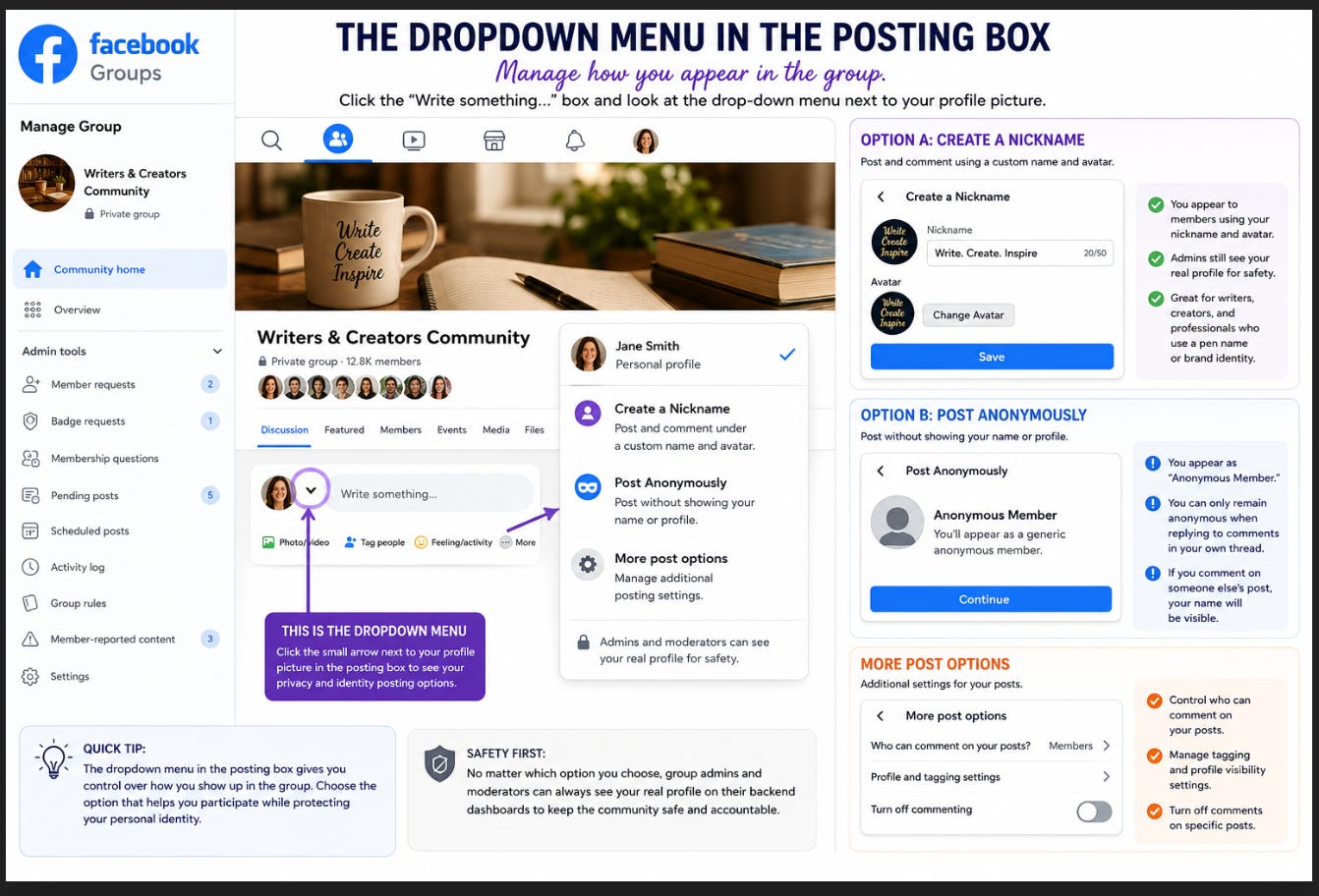
If you enter a group under your personal profile, you can easily check which privacy features are currently active by clicking the “Write something...” box and looking at the drop-down menu next to your profile picture.
Option A: The Nickname Feature
If you see “Create a Nickname,” you can safely set up a consistent custom name (like your creative pen name) and a specific avatar image for that room. This allows you to post and comment freely under your brand persona while keeping your personal profile beautifully protected from the general membership.
The Safety Guardrail: For community accountability, the group’s administrators and moderators can always see the real personal profile attached to your nickname on their backend dashboards. This provides a reasonable way to keep the group secure while still honoring your professional boundary out front.
Option B: The Anonymous Feature
If the group does not show a nickname option, they likely only have “Post Anonymously” turned on. First introduced by Facebook in 2020 for sensitive communities and later expanded platform-wide, this is a one-time privacy tool rather than a brand profile, and it requires a bit of extra caution:
The Commenting Rule: You appear as a generic placeholder labeled “Anonymous Member.” You can only remain anonymous when replying to comments inside your own anonymous thread. If you leave a comment on any other member’s post in the group feed, the shield drops and your personal name will be visible to the group.
3. Requesting the Nickname Feature From the Administration
Because the Nickname feature is a recent platform update rolled out globally by Facebook at the end of November 2025, many group administrators do not realize it is an option on their dashboards. This update was designed as a practical middle ground to let writers and creators comfortably use a pseudonym without disappearing into a generic anonymous tag.
If you want to request that they make this choice available, you can send a friendly, collaborative note:
The Admin Inquiry Template: *”Hi [Admin Name], I am a member of your group and really enjoy the community here. I wanted to reach out regarding a newer feature Facebook recently added for groups called ‘Group Nicknames.’
Right now, the group has anonymous posting enabled, but I was wondering if you would be open to making the Nickname feature available for members as well? It allows writers and creators to interact using a consistent pen name and avatar, which helps us contribute to the conversation and participate in the feed while keeping our personal profiles private from the general membership.
Because the administration can always see our real names on the backend for group safety, it keeps the room completely secure for you while allowing us to write comfortably. Thanks so much for your time and for considering it!”*
4. How It Works After Admin Approval (Desktop Walkthrough)
Once the administration activates the feature, you do not need a mobile app to manage it. You can configure your identity directly from your desktop browser with a few clean steps:
Open the Posting Box: Click inside the “Write something...” area at the top of the group feed.
Access the Identity Drop-Down: Click on your profile picture or the drop-down arrow in the top-left corner of the post window.
Select ‘Create Nickname’: Choose the custom name option, enter your professional or creative pen name, and upload your preferred brand avatar.
Save and Participate: Hit save. Your personal account remains safely under wraps, and you are ready to interact with the community with complete peace of mind.
Don’t abandon your own needs.
Don’t abandon your own needs.